Categories
Uncategorized

30+ Best Fonts For Your Shopify Store

Are you not getting sales on your shopify store ? Have you every thought about the reason ? Maybe your shopify store isn’t looking attractive for your visitors.

Just having a shopify store filled with products and super discounts isn’t enough for you to convert your vistors into customers. Your store should look authentic and attractive to your future customers.

No worries , We got your back here. In this post , we will share the best fonts that you can add to your shopify store right now to make your store look super cool and beautiful.

So, you might ask what are the best fonts for your shopify store ?

Here’s a compiled list of all good looking and beautiful fonts for your store.

(Quick Tip : If you want to add google fonts to your shopify store . We have a complete guide on How to add google fonts to shopify . Check it out !)

Roboto

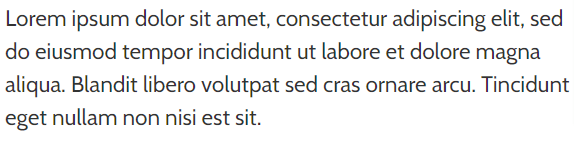
Cabin

Corben

Arvo

Open Sans

Lora

Parisienne

Sora

Hahmlet

JetBrains Mono

Andada Pro

Epilogue

Inter

Encode Sans

Manrope

Lora

BioRhyme

Playfair Display

Archivo

Cormorant

Spectral

Raleway

Work Sans

Lato

Anton

Old Standard TT

Oswald

Montserrat

That’s it. Try out these google fonts on your shopify stores to make them look legit and clean.

Thanks for reading the post. Happy shopifying.

Categories
Uncategorized

How To Add Custom Fonts To Shopify ?

Categories
Uncategorized

Best Shopify Font Apps

Recently we discovered some of the useful apps which can help you increase your store sales and profits. These are not the conventional review , history , inventory apps. What we are talking here are about the store design apps.

Store design apps can come into many flavours, some design the structure and layout of the shopify store like layout hub or shogun , while others help you add advanced filters for size and products . maybe a searchbar too.

But, These apps do not help you enhance your shopify store looks since it is the most important factor for your visitors to convert into high paying customers. Also, manually designing and customizing is a tedious task in itself.

Every store has typography to tell their visitors what the store is selling. Some stores have crappy fonts , which to be honest do not look that great . hence these stores are not what customers buy from.

Font’s and typography is a go to way for increasing the looks for your shopify store. you should use great fonts and beautooful designs to lure visitors and show off that your store is legit and authentic.

Fortunately , we have something for you. You dont really need to be a coder to add those good looking fonts , neither you need to do them manually.

We have compiled a list of awesome font apps that can make your store look , great.

Let’s dive into it.

Fontio ‑ Fonts Made Simple

Features:

  • Adding Custom Fonts and Styles
  • Adding Google Fonts
  • Simple and Easy to use
  • Custom Elements and Designs
  • Live 24/7 Live Support
  • Custom Element Picker
  • Compatible with all themes

Fontify ‑ Use any font

Features

  • Easy to install
  • Easy to configure
  • Use with any font
  • Supports all Google fonts
  • Compatible with all Shopify themes (also custom themes: Gecko, Basel, Elessi, Molla, and Boutique from The4)
  • Well documented
  • Live support
  • Use Free Google fonts

FontPicker — Easy Google Fonts

Features

  • Use Google Fonts: Customize your website using any Google Fonts.
  • Optimized Font Loading: Optimize performance by loading only the font weights you use, so it loads faster.
  • Upload Custom Fonts: Upload your own font files and use them on your website.
  • Font Size: Customize the font size of any element.
  • Font Color: Customize the font color of any element.
  • Line Height: Improve readability by tweaking your line heights.
  • Letter Spacing: Fine-tune the space between letters to perfect your typography.
  • Text Transform: Transform headings and text with a click, options include: Capitalize, UPPERCASE, and lowercase.
  • Font Preloading: Improve website performance by loading font files as soon as the page loads.
  • Custom Elements: Define your own elements and the app will build the typography controls for you.
  • And so many other features need you to discover: margin, padding, border, border-radius, box-shadow, text-shadow, position, drop-cap, …

FontBox ‑ Add Fonts Easily

Features

  • Easy To Operate
  • One-Click Install
  • Add Fonts To Favourite
  • No Coding Required
  • Unlimited Google Fonts
  • Unlimited Custom Fonts
  • Multiple Language Fonts
  • Compatible with all Shopify themes & Custom Themes
  • Live Support

Categories
Uncategorized

How To Add Adobe Fonts To Shopify ?

Categories
Uncategorized

How To Add Google Fonts To Shopify ?

This guide will help you setup google fonts on your shopify theme. Let’s dive into the guide quickly . It is extremely easy to set this up .

Quick Tip : We have compiled a list of Best Fonts for Shopify Theme Article. Check it out too.

Step 1: Login to Fontio App

In the above step , enter the store url in the text box and click sign in. After clicking the sign in button , It will redirect you to shopify login page , where you will have to enter shopify credentials. once your credentials are valid one and you are authorized , you will be logged into the dashboard.

If you have not installed our app . Click on Fontio – Adding Fonts Made Simple to install the same.

Step 2: Dashboard

Once you are logged in successfully , you wil be show dashboard like below.

Dashboard has following sections:-

  • My Settings – This section helps to manage App Settings
  • How To Use – This section guides you on how to use fontio app.
  • Upgrade – This section let’s you upgrade for premium features ($10 One Time)
  • Logout – This section will logout you from the app.

Step 3: Select Tag Type On Dashboard

On Dashboard , Select the HTML Tag to which you want to apply font to.

List consists of many HTML Tags like paragraphs , lists , blockquotes , div, spans etc.

Select any one of those.

Step 4 : Select Font Type On Dashboard

Font Types are mainly – Google Fonts and Custom Fonts . (* You need premium account to add custom fonts while google fonts are 100% free to use)

To add google fonts to shopify store , choose google font option and click “ADD”.

Step 5 : Select Font And Preview Font

After clicking HTML TAG and FONT TYPE in previous steps and clicking “ADD” button.

You will see a card below which has below buttons

  • SAVE – This button will actually add font to store.
  • PREVIEW – This button will preview font (before saving)

In this step , Select the Font and Font variant.

Since, We have selected font type as “Google Font” – Select any google Font from Font list.

Also, Each Google Font has got a variant too like regular , italic , bolder …

Select the variant which you would like to add to the HTML Tag.

You can also click “Preview” Button to check how the font looks before actually saving the font.

If everything seems okay for you , just click “SAVE” Button and the font will be added to the shopify store.

Step 5 : Remove Google Font (Optional)

This is an optional step , once you have added a font to your shopify store . you can also remove it from your store.

Just click the “DELETE ICON” button and the font wil be removed from your shopify store.

That’s it . Hope you have understood how to add google fonts to your shopify theme.

Let us know , if you have any questions. We are super quick to answer these questions.

Quick Tip : We do have our FAQ’s , Privacy policy and other guides here. Check it out if needed.

Have a great day !

Design a site like this with WordPress.com
Get started